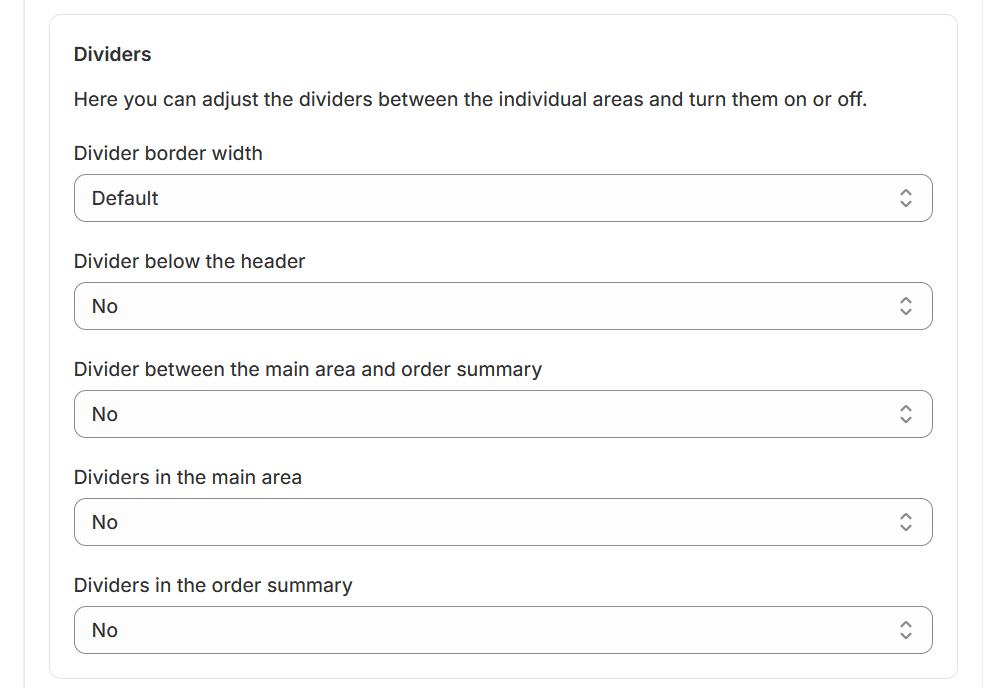
Logo on the left
The logo sits on the left side of the checkout header, a familiar layout for many stores.
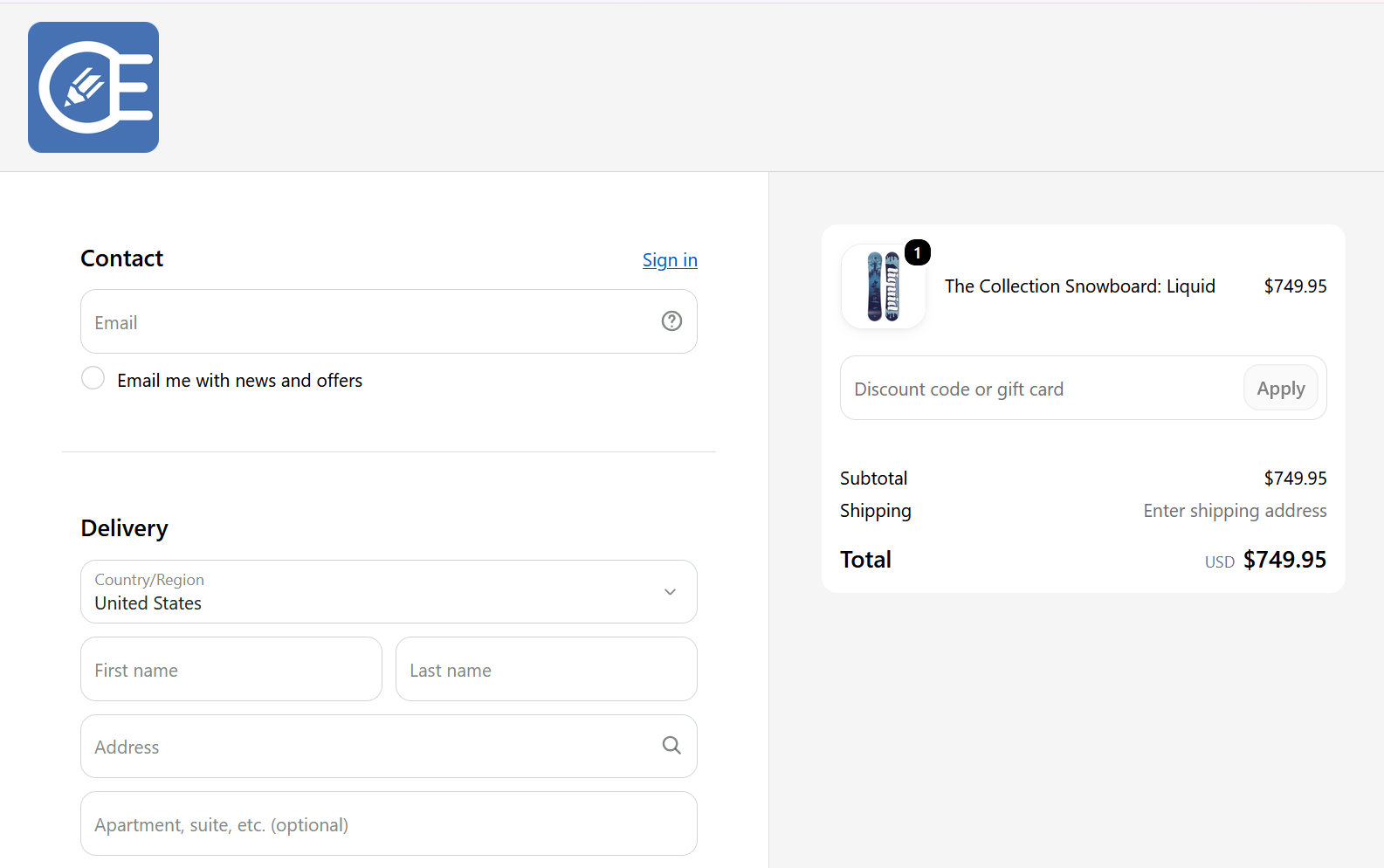
Settings used in this example
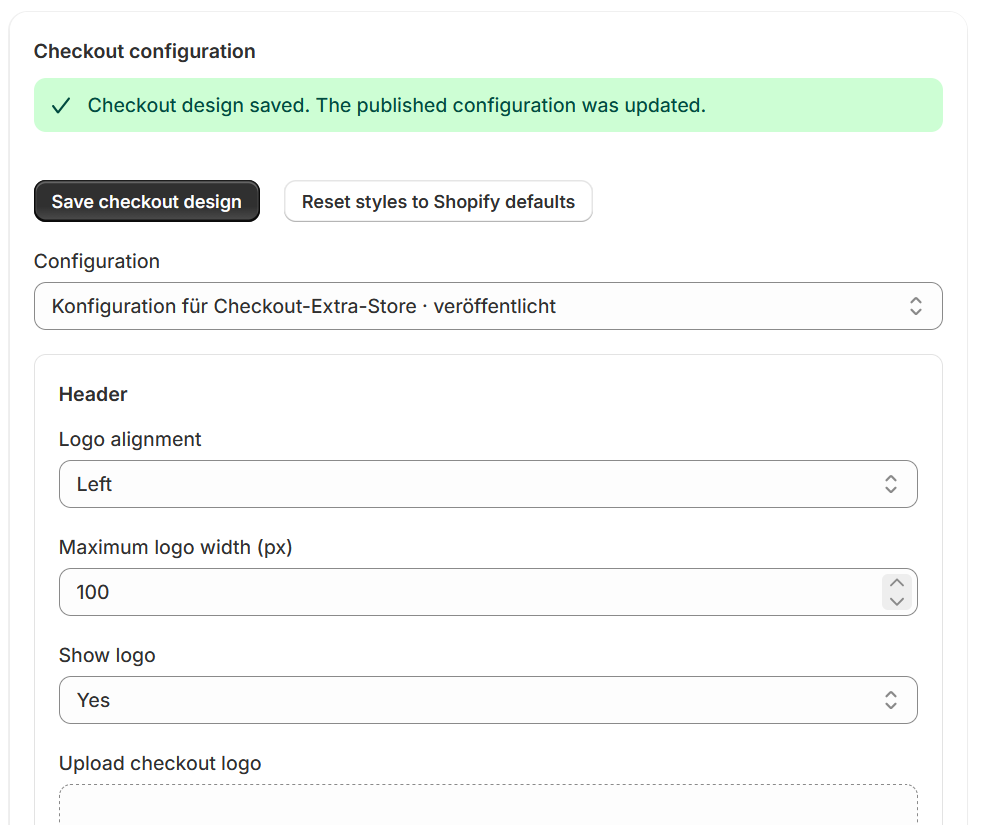
These examples show where to find the settings and how changes can affect the checkout.
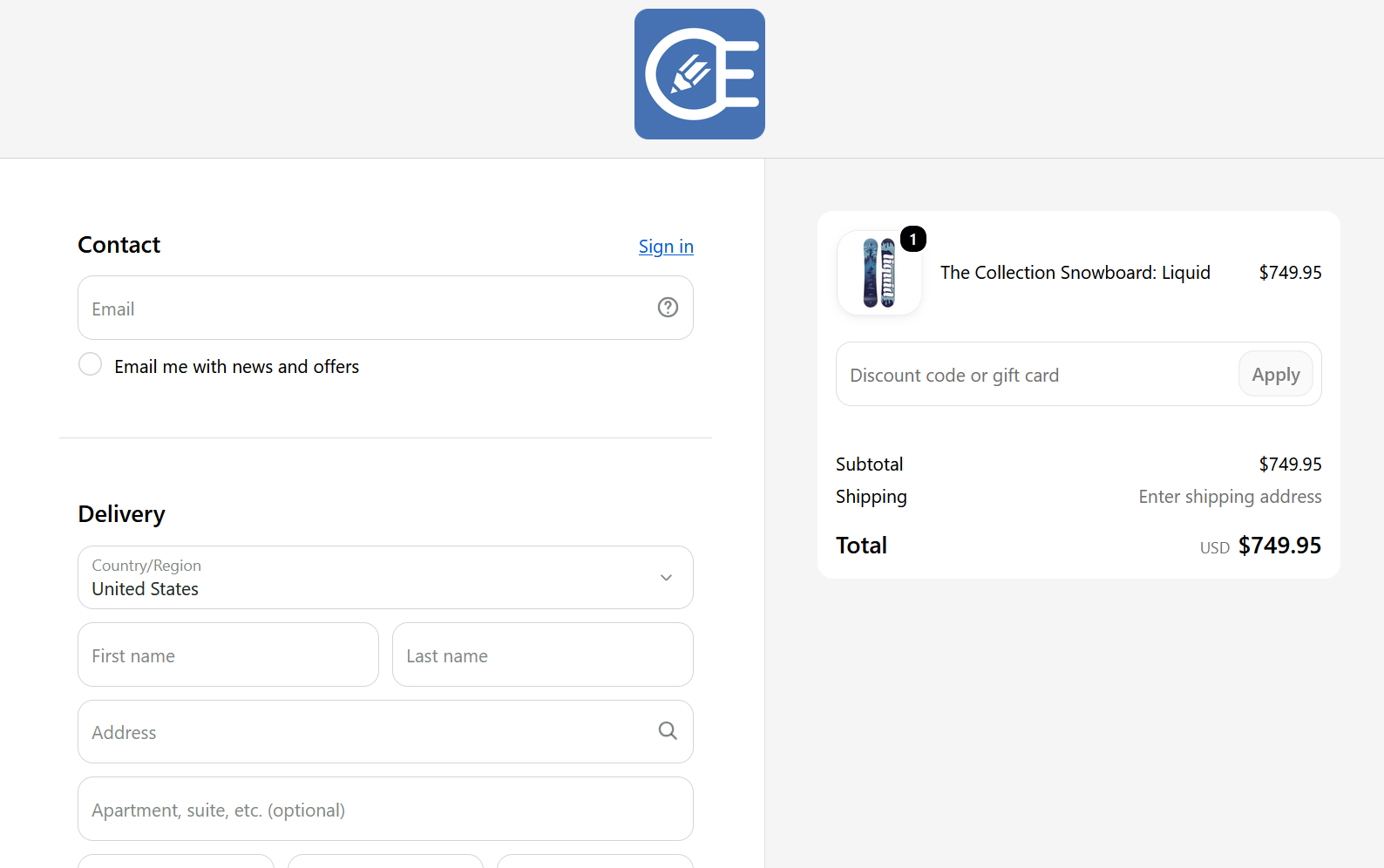
Upload your checkout logo in the header settings, then choose its maximum width and alignment. The two examples show the same logo aligned left and centred.
The logo sits on the left side of the checkout header, a familiar layout for many stores.
The logo is centred in the header, putting your brand at the visual centre.
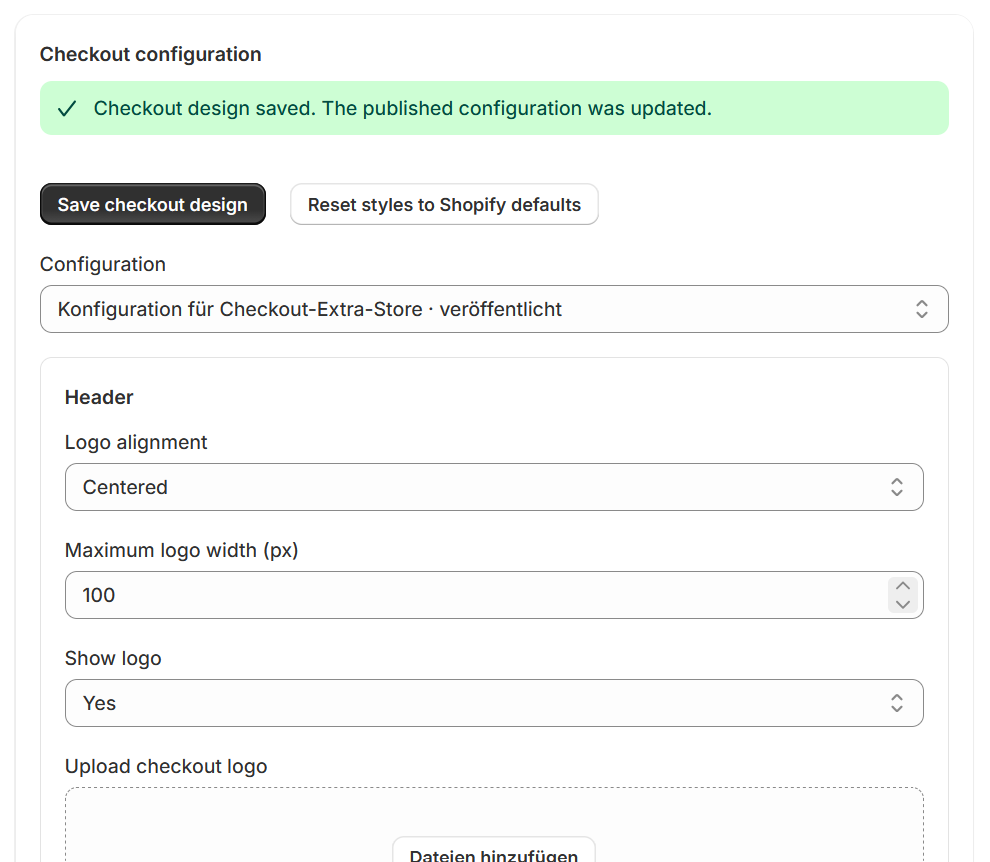
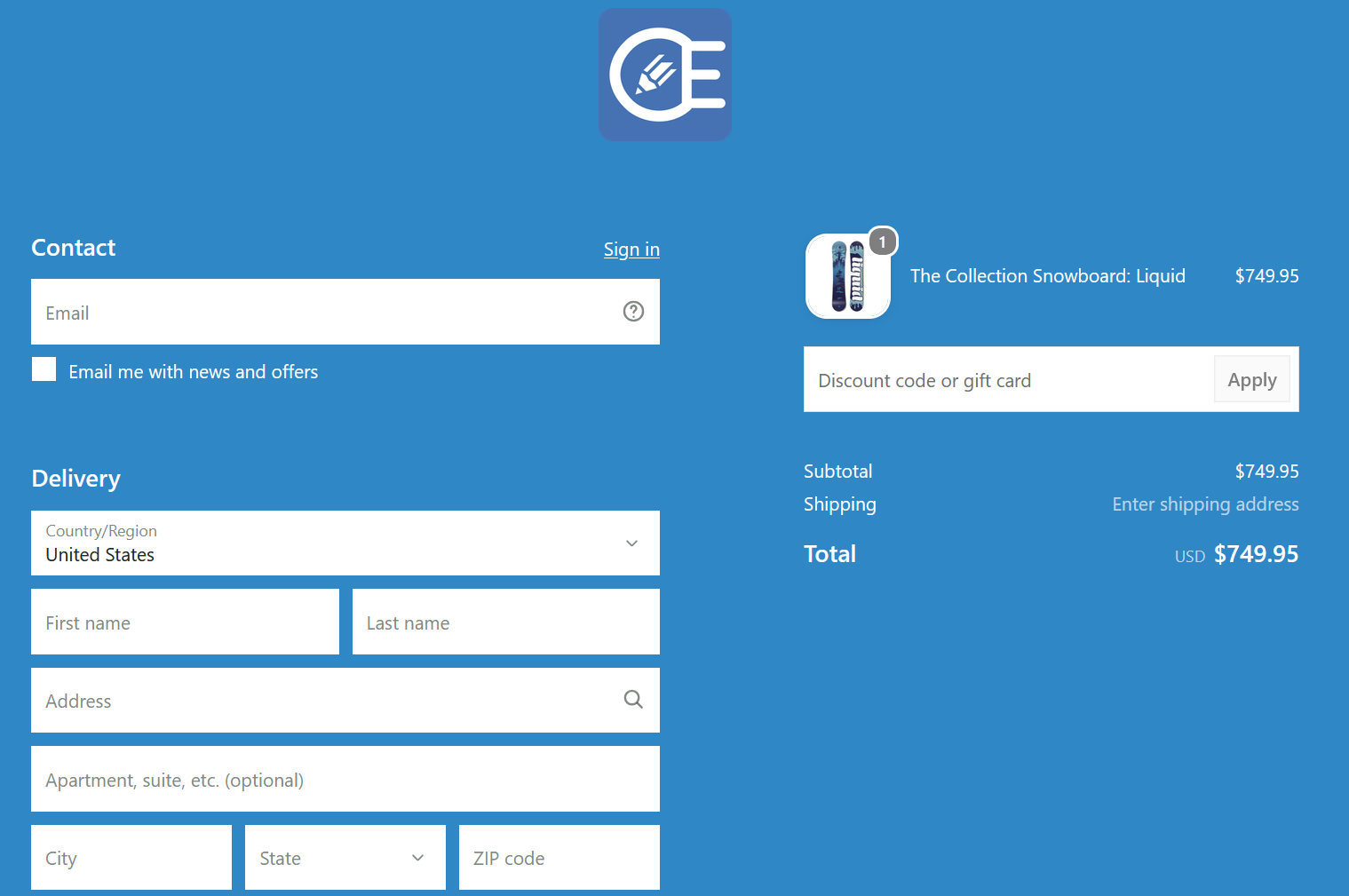
In this example, the header, main area and order summary share a light blue background. The sections remain white so forms and order details are easy to read. All divider lines are turned off.
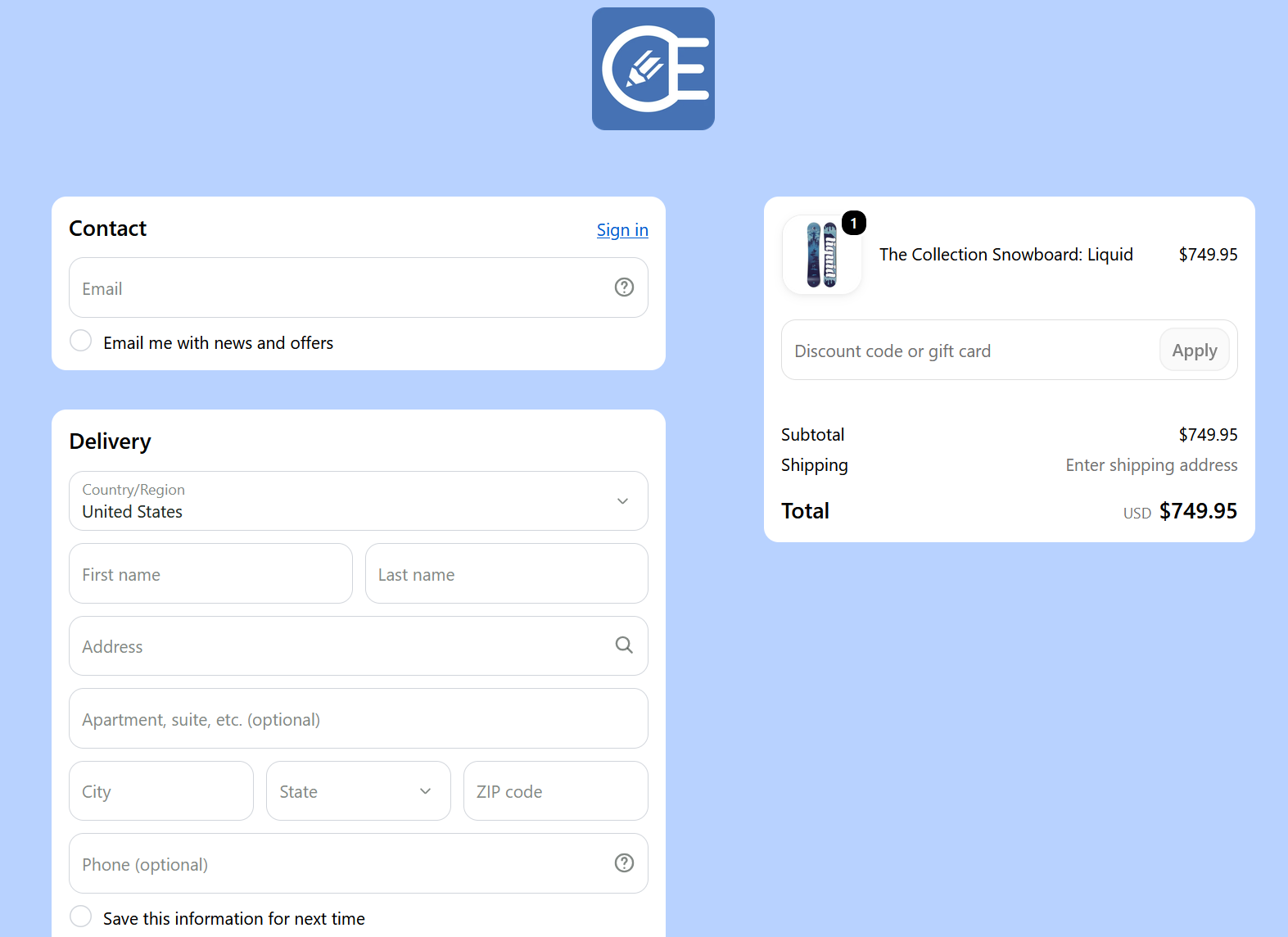
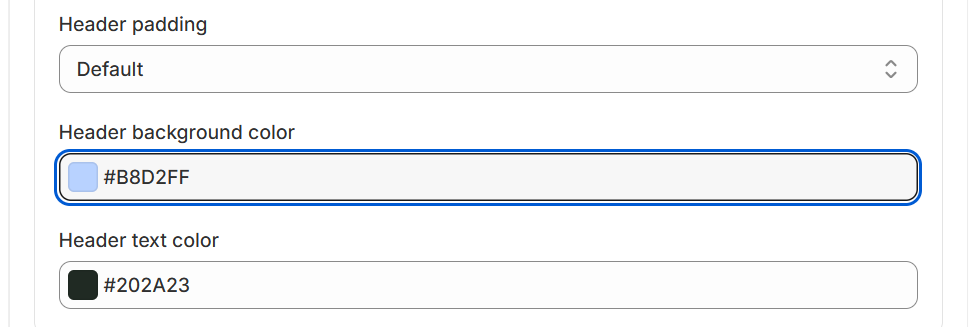

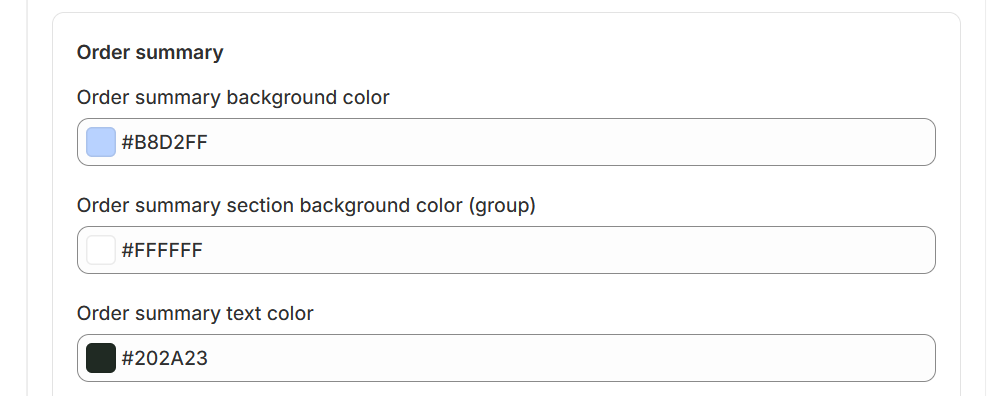
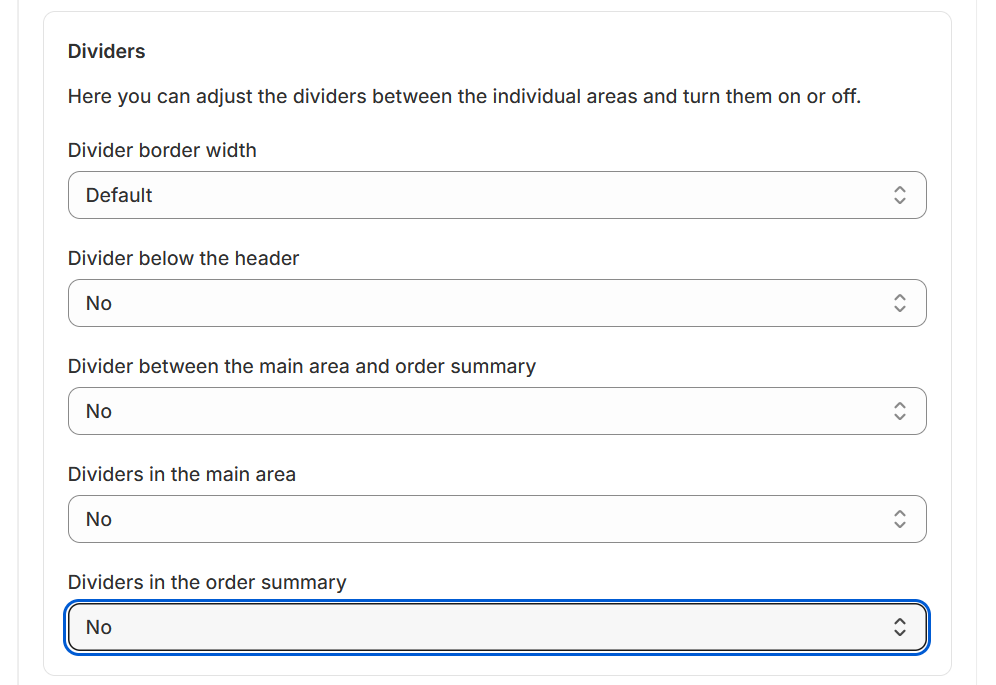
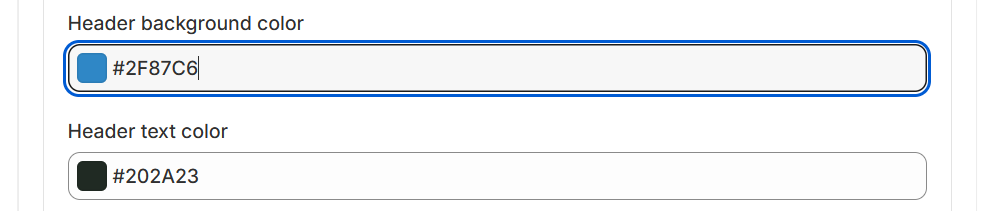
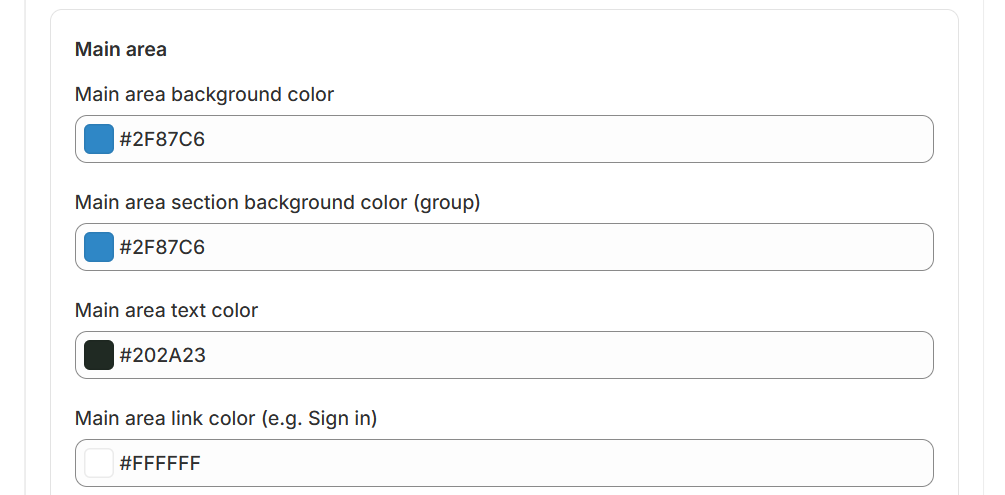
Here, the header, main area, order summary and sections use blue backgrounds. Input fields have a 0 px corner radius and white surfaces. Links in the main area are white, and all dividers are turned off.
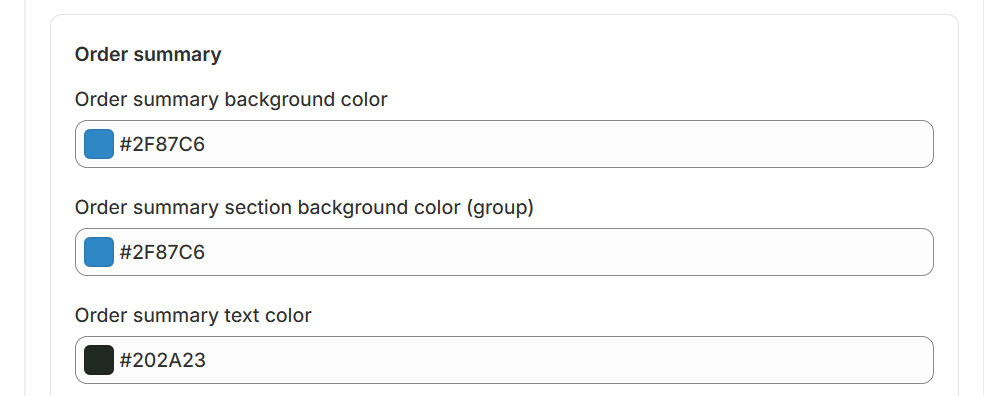
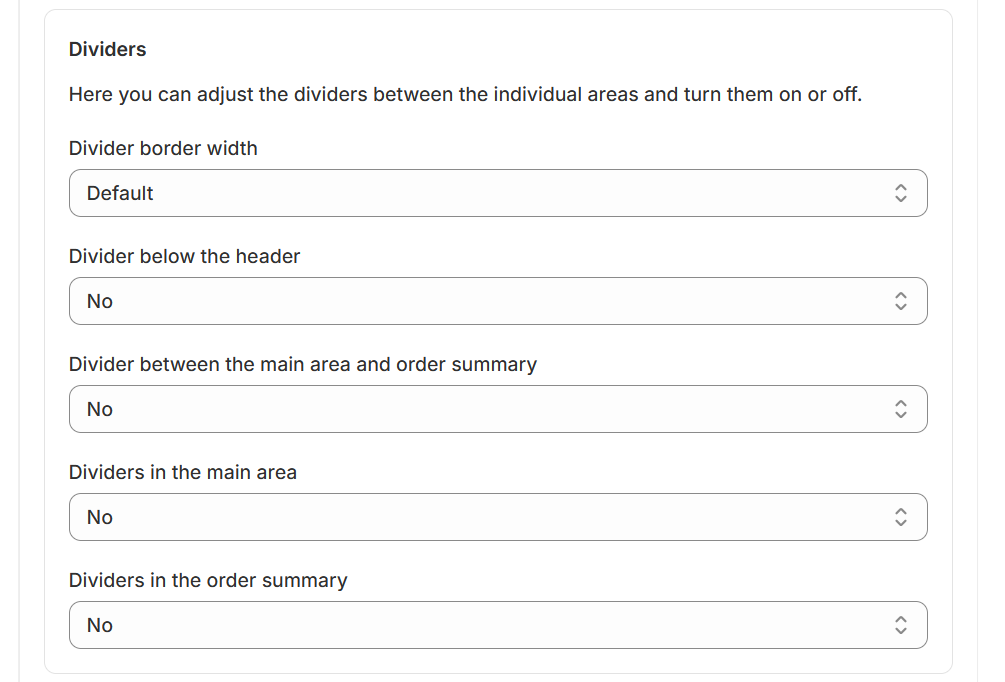
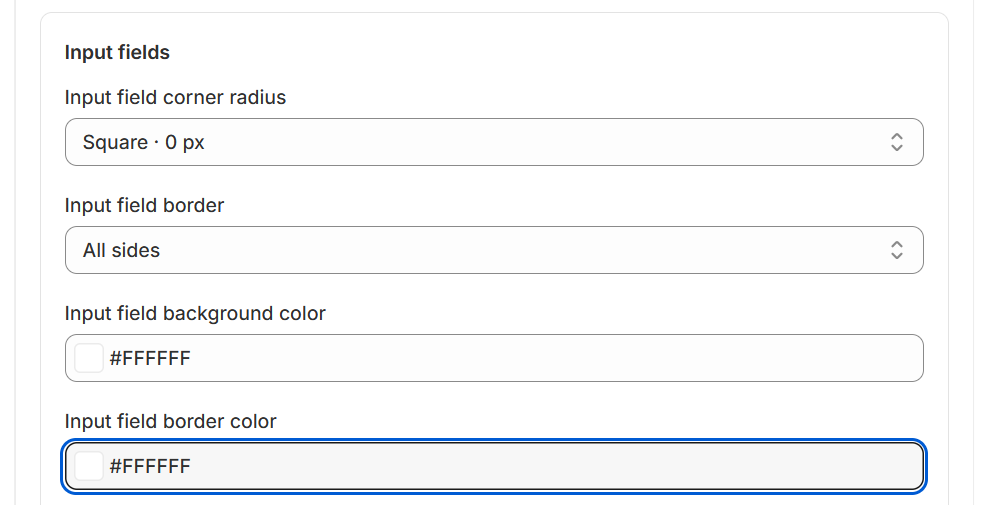
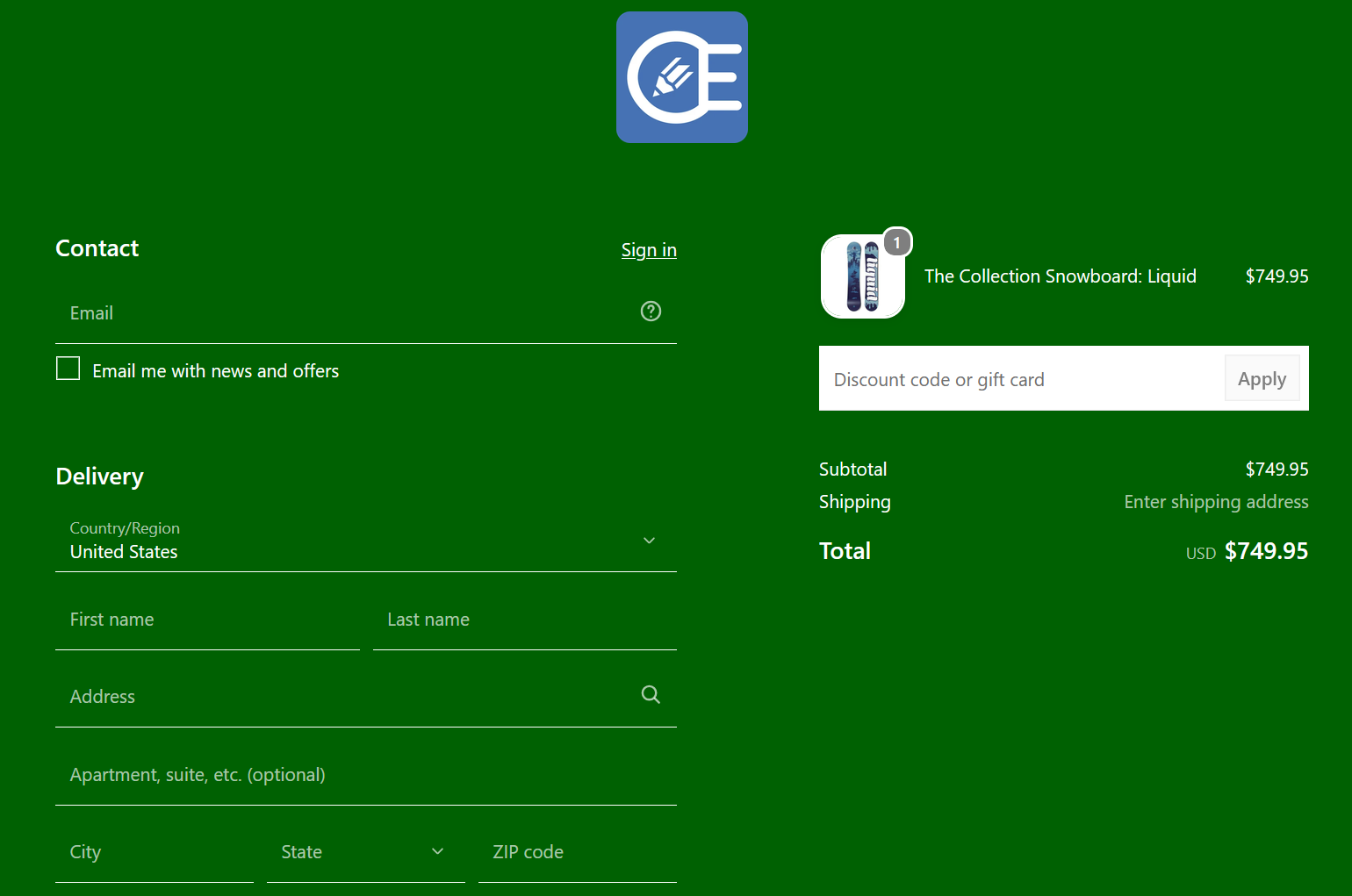
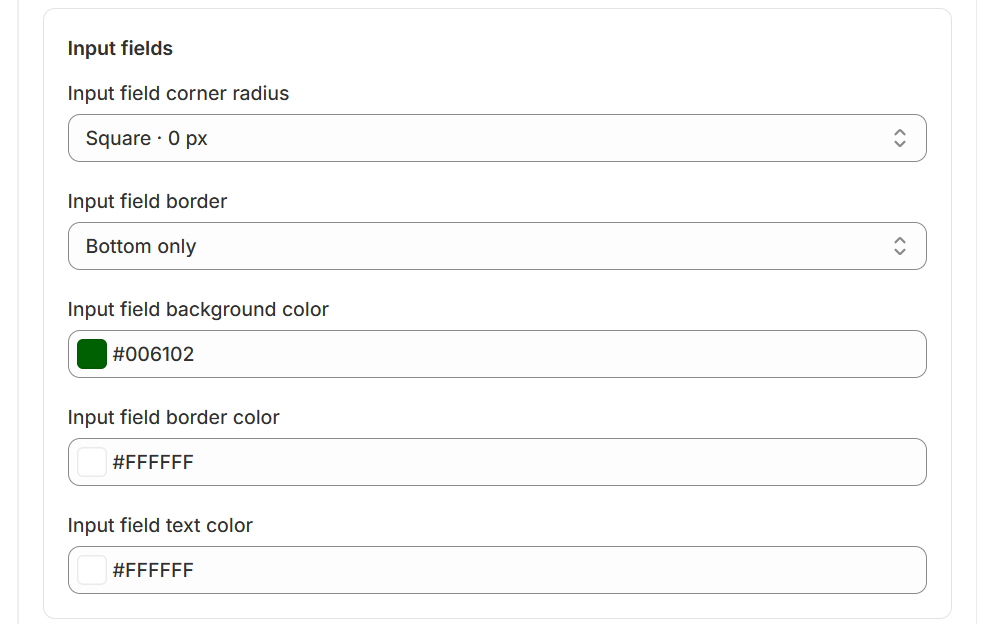
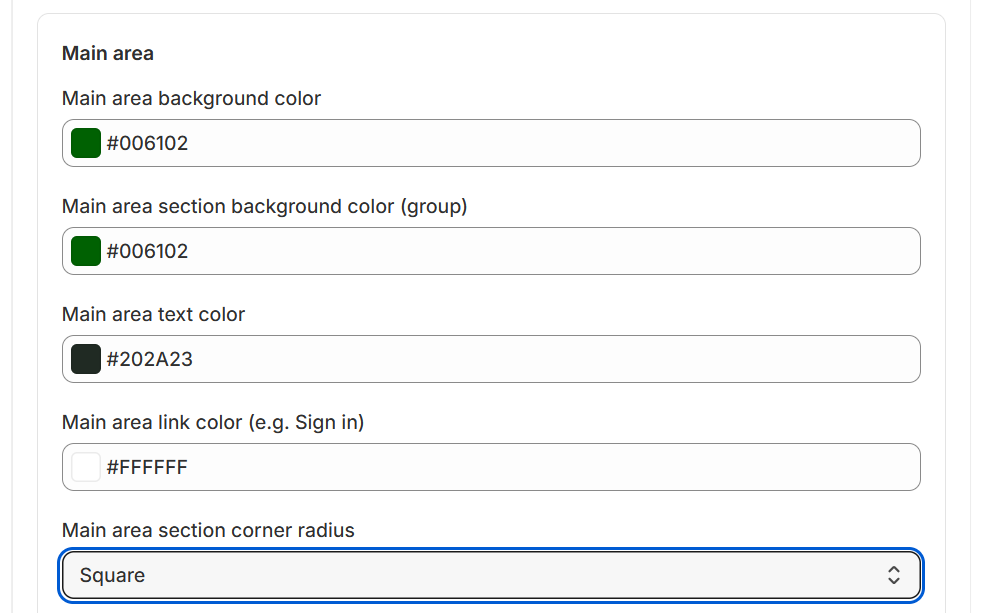
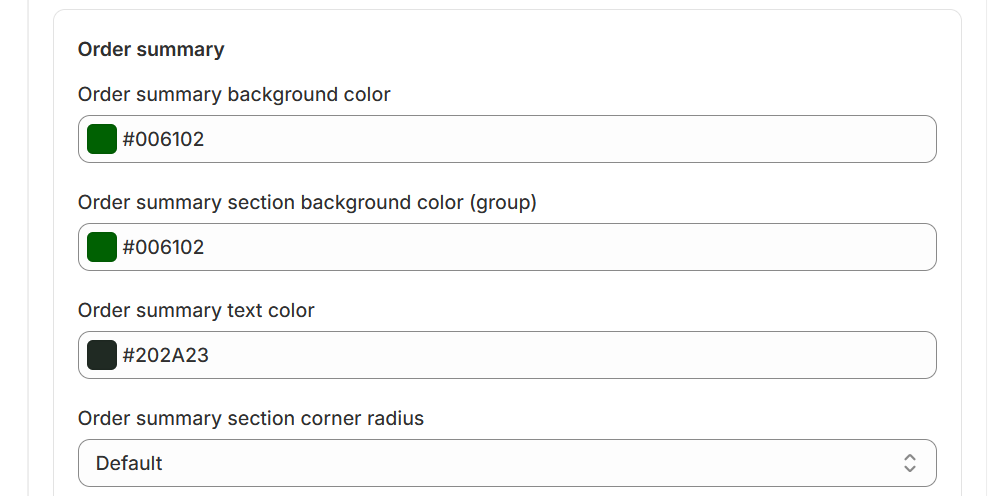
The header, main area, order summary and sections use dark green #006102. Input fields are also dark green, with white text and a bottom-only border. Section dividers remain turned off.